What is MFA?
MFA (Multi-Factor Authentication) is a cybersecurity best practice widely adopted by organizations worldwide to protect users and their systems and data. MFA enhances your Tyndale account security by requiring multiple verification methods beyond just your password. MFA combines something you know (e.g., a password) with something you have (e.g., a phone). To provide an extra layer of security, you will be prompted to authenticate using the Microsoft Authenticator app on your mobile phone or tablet in addition to logging in to Tyndale applications using your username and password.
Tyndale University requires all Faculty and Staff to enable and use Multi-Factor Authentication (MFA) when accessing Tyndale staff resources. Having MFA enabled on your account significantly reduces the risk unauthorized access to your account, even if your password is compromised.
Currently, MFA is a requirement for Tyndale Staff and Faculty accounts, and we are now requiring Students to enroll their account with MFA.
Effective September 2026, MFA will be rolling out in phases to groups of Active students and is now required for all new Student accounts.
See further below if you are an existing user trying to setup MFA on your account.
Also please see our frequently asked question (FAQ) section further below.
The current preferred Authentication method is using passkeys. Passkeys are a phishing-resistant method of verifying your account login. You can add a passkey to your Tyndale or MyTyndale login and greatly increase the security of your account and your personal information.
The recommend MFA authentication app is the Microsoft Authenticator app. On IOS devices, the current minimum version required for this app is IOS 16 and on Android the minimum version is 8.0.
The minimum Android version for passkey support is Android version 9. The minimum Android version for passkey support in a 3rd party application, such as Microsoft Authenticator, is Android version 14. If your Android (Samsung Galaxy/Google Pixel/Motorola etc.) phone was released in the past 5-6 years, it most likely supports passkeys.
The minimum Apple IOS version for passkey support is IOS version 16. If your Apple phone was released in the past 7-8 years, it most likely supports passkeys.
We strongly recommend having 2 different MFA methods on your account, such as Authenticator and a passkey. This will ensure you have a backup method of accessing your account.
New User / First Login
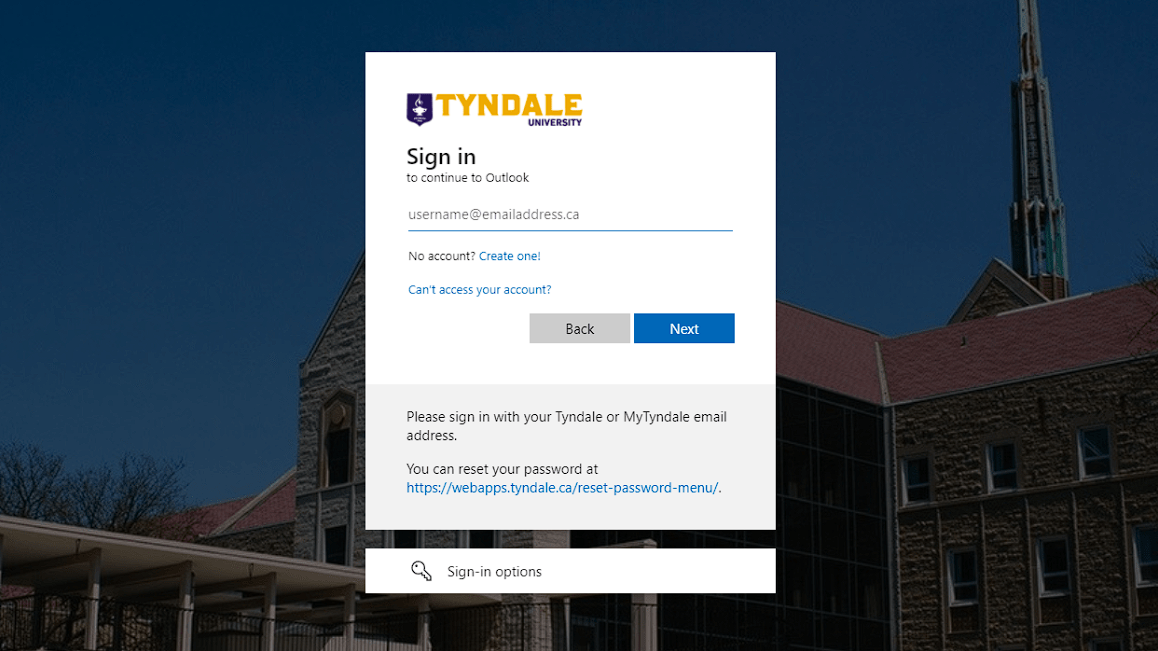
1. Visit https://aka.ms/mfasetup in a web browser on your computer and sign in using your Tyndale email address and password. This Microsoft link provides a direct entry to your Tyndale or MyTyndale account security settings. If you do not know what your account password is, please visit https://password.tyndale.ca and you can request a password reset email be sent to your personal email account.
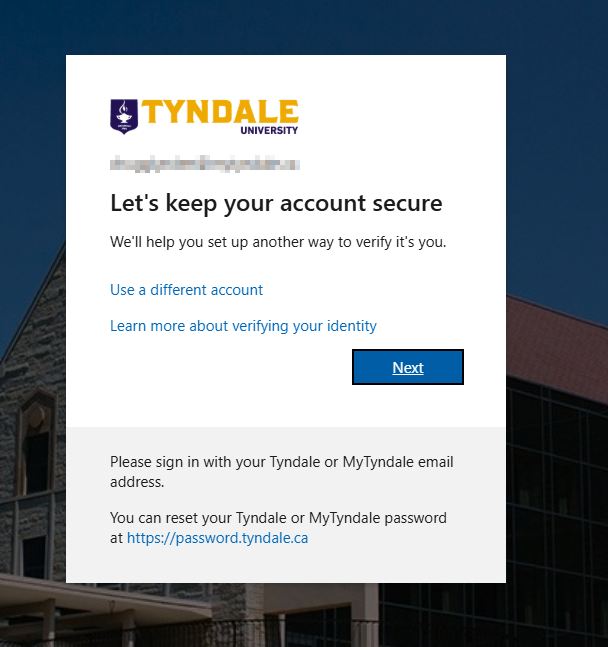
2. Upon your first successful login, you will see a webpage that says, "Let's keep your account secure". Click Next.
3. Next, you will be prompted to download an app called Microsoft Authenticator onto your phone, tablet or another compatible Android or Apple IOS device.
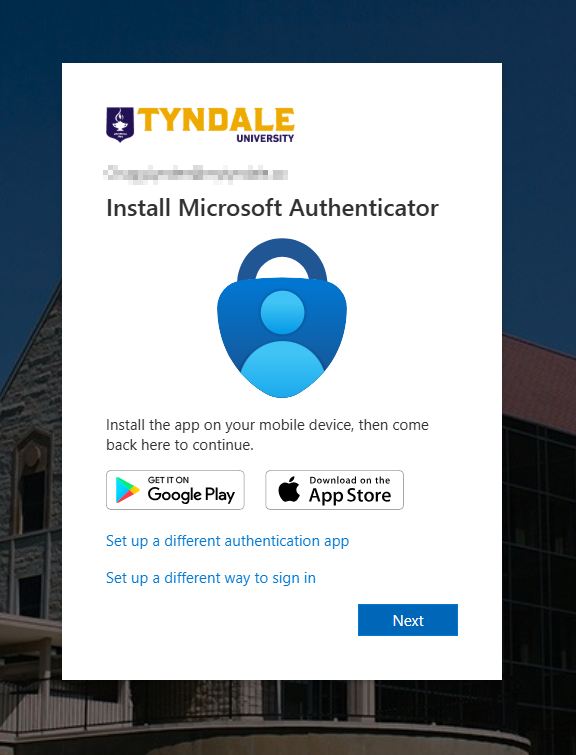
1. The Microsoft Authenticator app is the primary and recommended additional security method of getting into your Tyndale account. To install the Microsoft Authenticator application on your supported mobile or tablet device, scan the below QR codes to either go to the App Store on your iPhone/iPad or the Google Play Store on your Android device.
Be sure to download ONLY the Authenticator application that is published by Microsoft, as there are sponsored/paid Authenticator applications that may not be legitimate. If you are ever asked to pay to use the Authenticator application, you likely installed the wrong one.
The program you install needs to have this icon associated with the App. Do not download any other application other than the one that has this icon and is published by Microsoft:
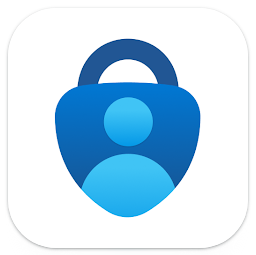
You can also use of these links to go directly to the download:
Download Microsoft Authenticator app on Android
Download Microsoft Authenticator app on iOS
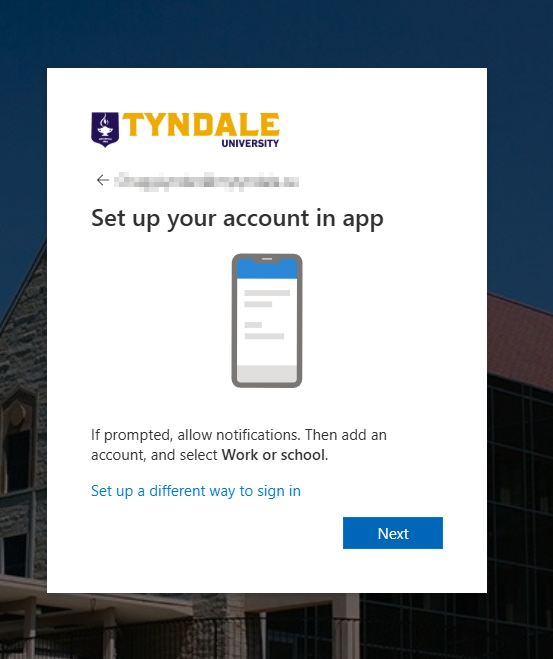
3. Once the Microsoft Authenticator app is installed, open it on your mobile device. Be sure to allow any notification permission request that comes up on your mobile device. click Next on the screen that is still open on your computer, and the below picture shows the screen that will appear on your computer.
4. Press Next again and a QR code will appear. DO NOT SCAN THE QR CODE YET!
5. On your mobile device, press the + (plus) sign in the top right of the Authenticator application.
Note: If this is the first time that you're setting up the Microsoft Authenticator app, you might receive a prompt asking whether to allow the app to access your camera (iOS) or to allow the app to take pictures and record video (Android). You must select Allow so the Authenticator app can access your camera to take a picture of the QR code in the next step. If you do not allow the camera permission, you can still set up the Authenticator app, but you'll need to add the code information manually.
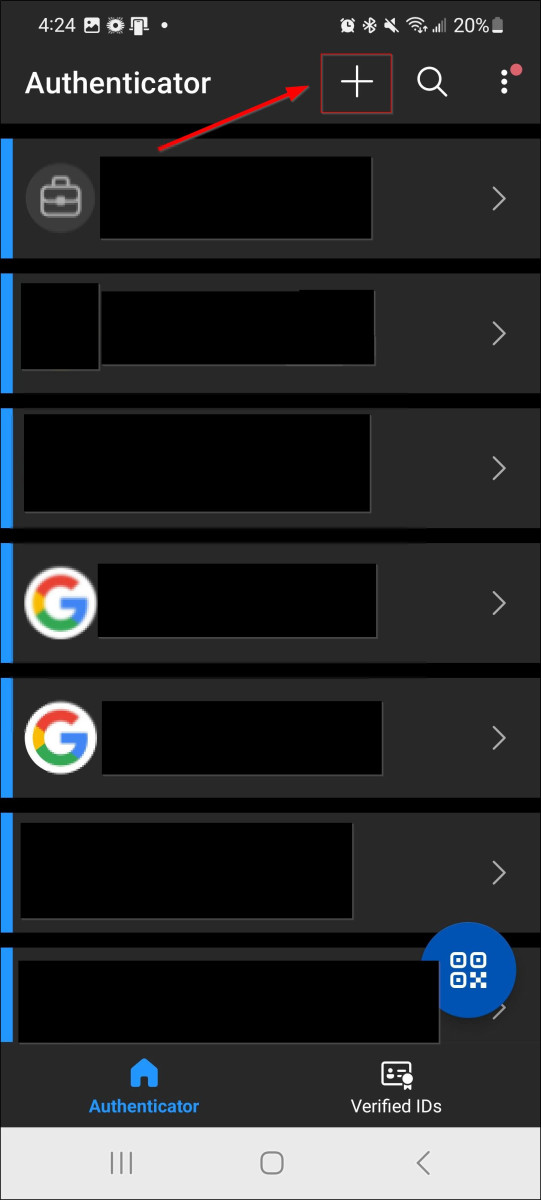
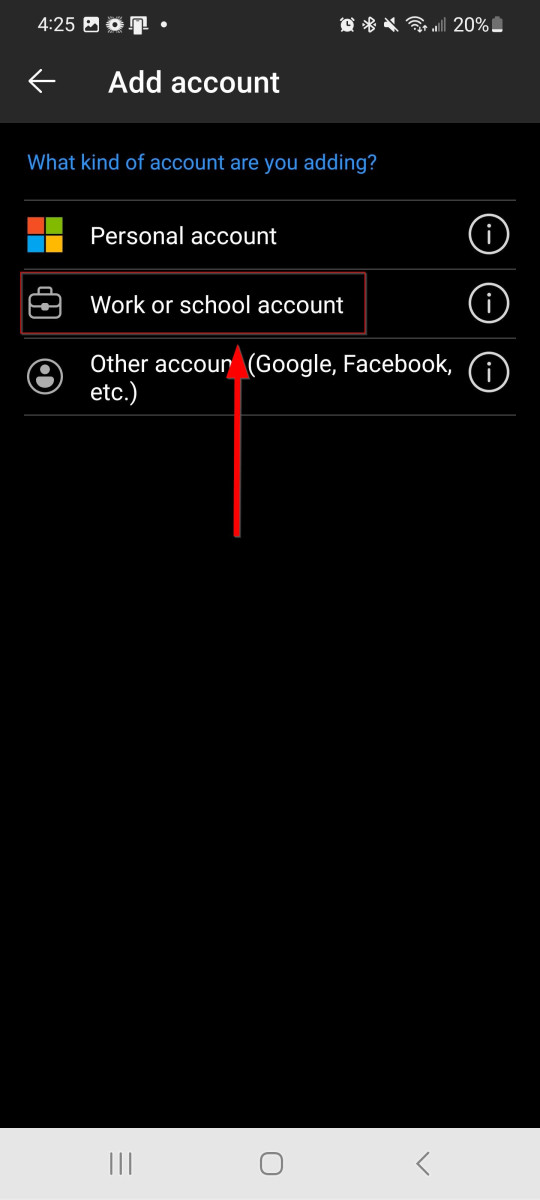
6. On the next screen on your mobile device, select "Work or School account"
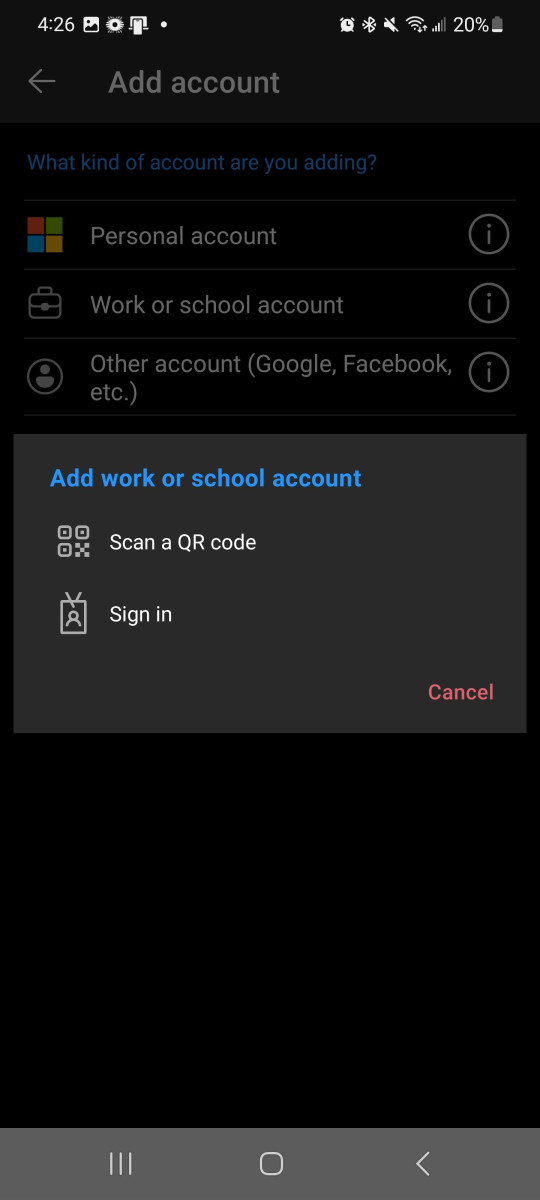
7. Next on your mobile device, you will be prompted to scan a QR code. Click on "Scan a QR Code" in the middle of the app.
Again, if this is the first time that you're setting up the Microsoft Authenticator app, you might receive a prompt asking whether to allow the app to access your camera (iOS) or to allow the app to take pictures and record video (Android). You must select Allow so the Authenticator app can access your camera to take a picture of the QR code in the next step. If you do not allow the camera permission, you can still set up the Authenticator app, but you'll need to add the code information manually.
8. Back on your computer screen, you should still have the QR code displayed that we need to scan with your mobile device. Using your mobile device, scan and show the QR code on your computer screen into the scanning box on your mobile device screen.
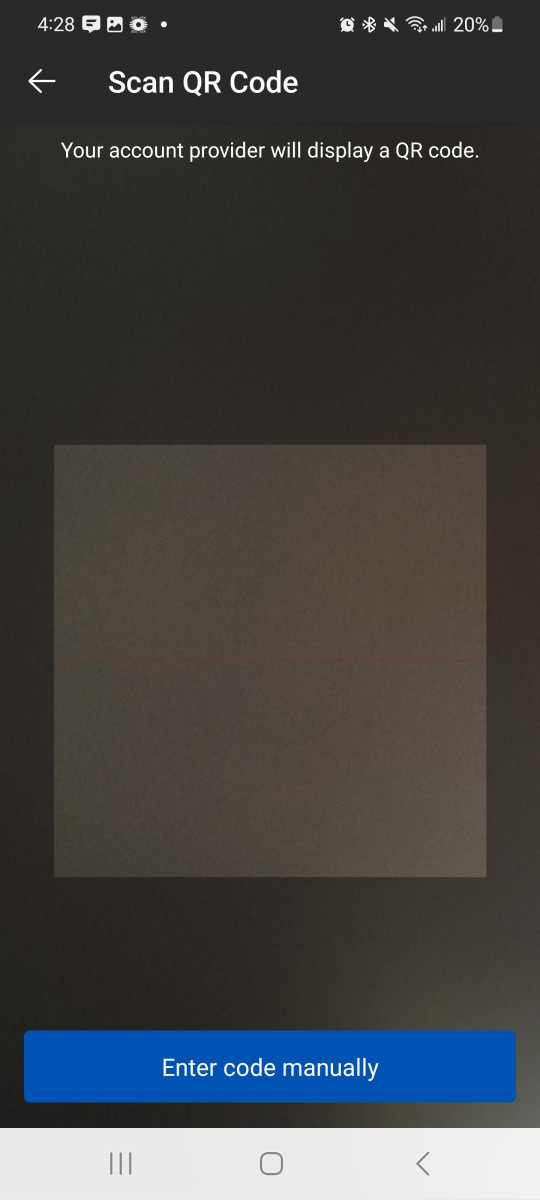
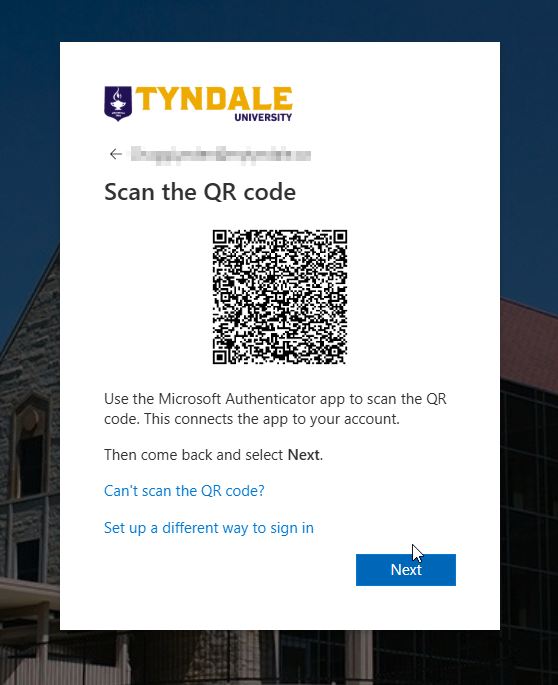
If you're not able to scan the QR code, you can click on "Can't scan the QR code?" and follow the instructions to enter the information manually in your Authenticator app.
9. Once you've successfully scanned the QR code with your mobile device, we now need to finalize the link between your mobile device and your account by entering the two digits being displayed on your computer screen into the Microsoft Authenticator app on your mobile device. Once the numbers are entered, then click Yes in the Authenticator app on your mobile device.
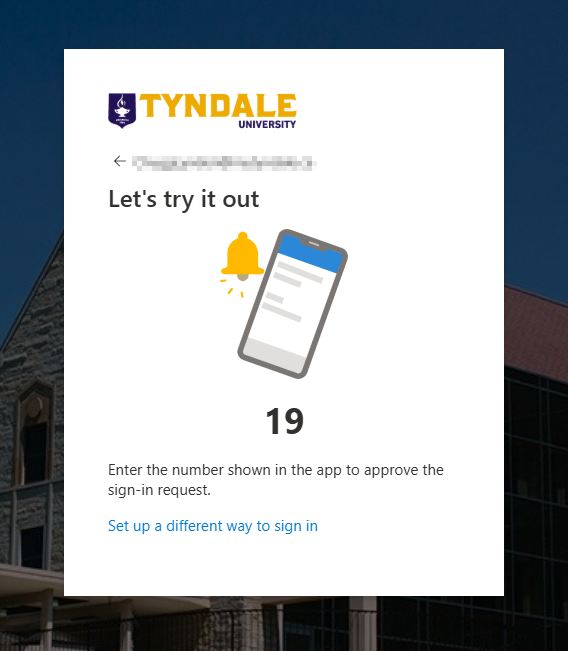
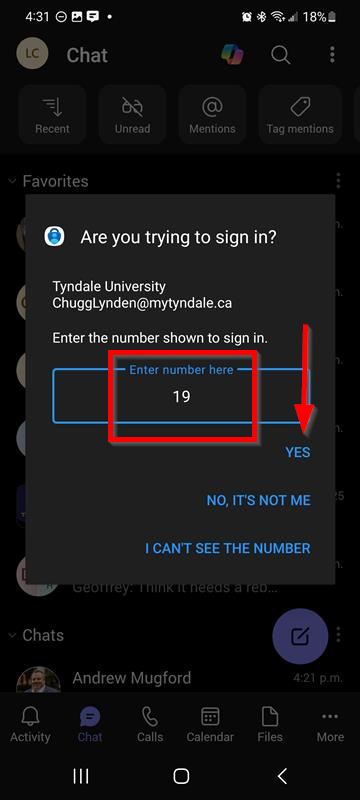
10. Success! The link between your Tyndale account and your Microsoft Authenticator application is now complete! Click done.
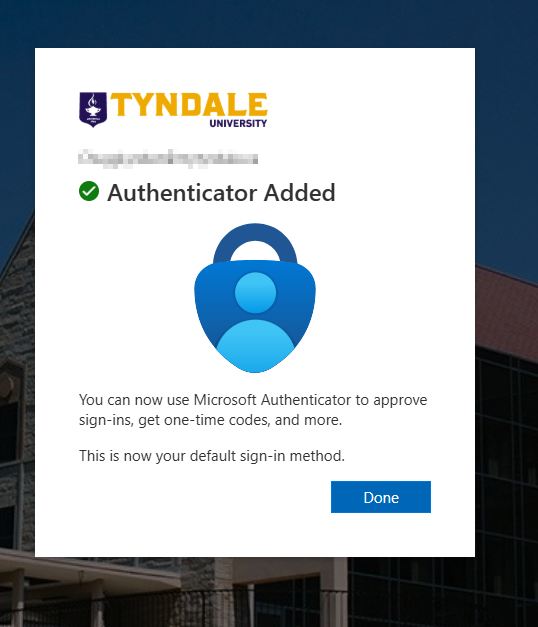
10. On your computer, you will now be directed to the MFA security settings page for your account. At this point, we strongly encourage you to setup another MFA authentication method for getting into your Tyndale account. As the Authenticator app is tied both to your exact phone and your Tyndale account, this backup method will be helpful if you ever break, lose, or upgrade your phone, or if the Authenticator app stops working for some reason. As SMS texting is now going away, we recommend setting up passkeys as an additional authentication method. Please see below for instructions on setting up a passkey for your account.
SETTING UP MFA ON YOUR EXISTING TYNDALE OFFICE 365 ACCOUNT
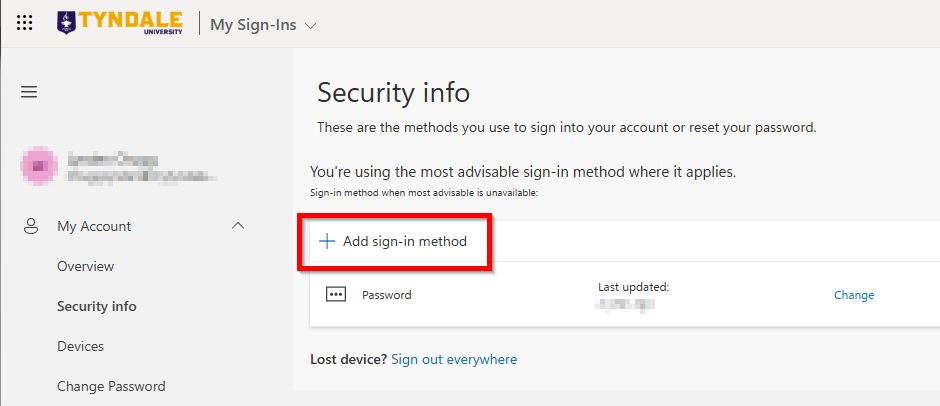
1. On a computer or laptop, please visit https://aka.ms/mfasetup and sign in with your Tyndale or MyTyndale email address. You will be directed to the "Security info" webpage below. Click on "Add sign-in method"
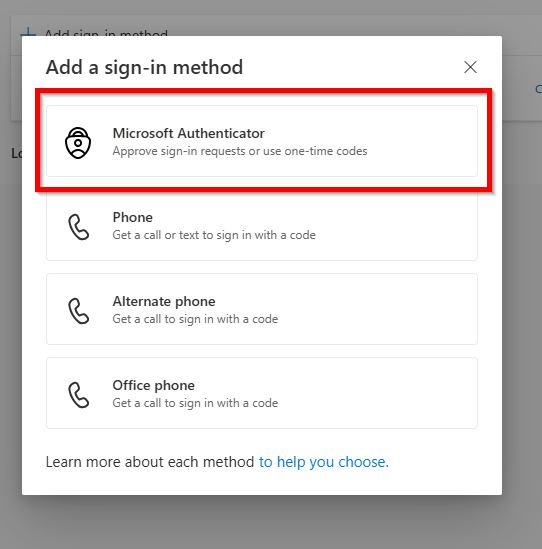
1. Click Microsoft Authenticator.
2. The Microsoft Authenticator app is the primary and recommended additional security method of getting into your Tyndale account. To install the Microsoft Authenticator application on your supported mobile or tablet device, scan the below QR codes to either go to the App Store on your iPhone/iPad or the Google Play Store on your Android device.
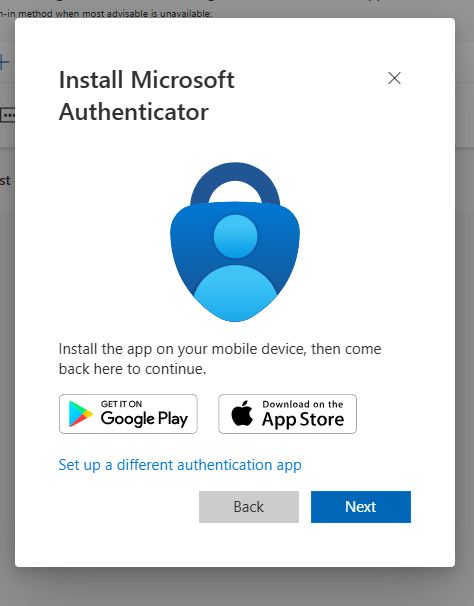
Be sure to download ONLY the Authenticator application that is published by Microsoft, as there are sponsored/paid Authenticator applications that may not be legitimate. If you are ever asked to pay to use the Authenticator application, you likely installed the wrong one.
The program you install needs to have this icon associated with the App. Do not download any other application other than the one that has this icon and is published by Microsoft:
You can also use of these links to go directly to the download:
Download Microsoft Authenticator app on Android
Download Microsoft Authenticator app on iOS
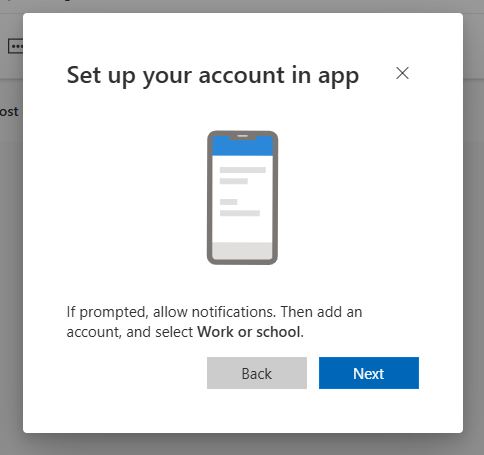
3. Once the Microsoft Authenticator app is installed, open it on your mobile device. Be sure to allow any notification permission request that comes up on your mobile device. Click Next on the screen that is still open on your computer, and the below picture shows the screen that will appear on your computer.
Note: If this is the first time that you're setting up the Microsoft Authenticator app, you might receive a prompt asking whether to allow the app to access your camera (iOS) or to allow the app to take pictures and record video (Android). You must select Allow so the Authenticator app can access your camera to take a picture of the QR code in the next step. If you do not allow the camera permission, you can still set up the Authenticator app, but you'll need to add the code information manually.
4. Press Next again and a QR code will appear. DO NOT SCAN THE QR CODE YET!
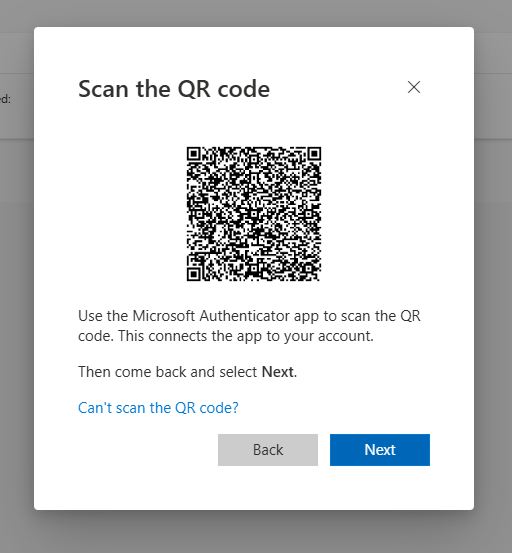
5. On your mobile device, press the + (plus) sign in the top right of the Authenticator application.
6. On the next screen on your mobile device, select "Work or School account"
7. Next on your mobile device, you will be prompted to scan a QR code. Click on "Scan a QR Code" in the middle of the app.
8. Back on your computer screen, you should still have the QR code displayed that we need to scan with your mobile device. Using your mobile device, scan and show the QR code on your computer screen into the scanning box on your mobile device screen.
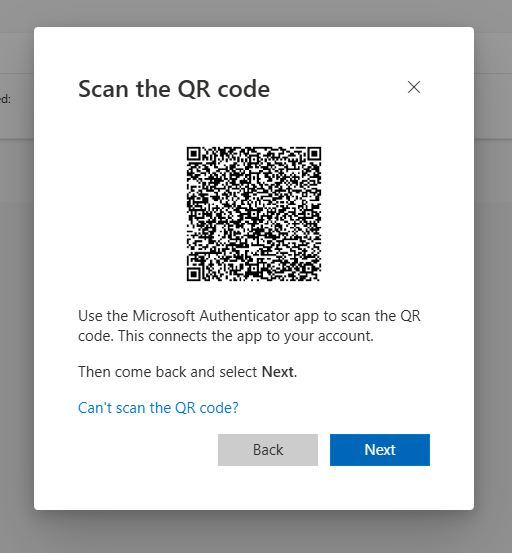
If you're not able to scan the QR code, you can click on "Can't scan the QR code?" and follow the instructions to enter the information manually in your Authenticator app.
9. Once you've successfully scanned the QR code with your mobile device, we now need to finalize the link between your mobile device and your account by entering the two digits being displayed on your computer screen into the Microsoft Authenticator app on your mobile device. Once the numbers are entered, then click Yes in the Authenticator app on your mobile device.
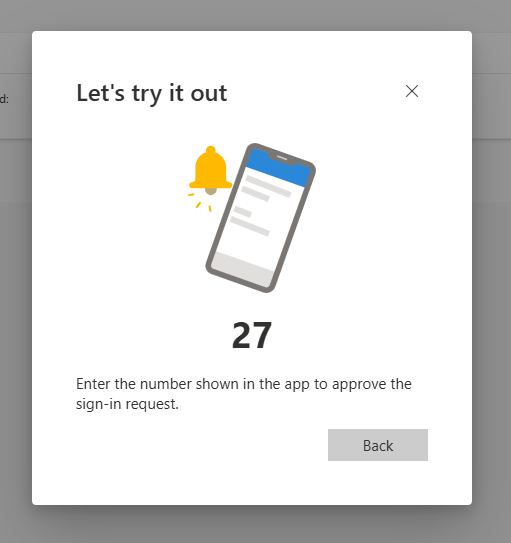
10. Success! The link between your Tyndale account and your Microsoft Authenticator application is now complete! Click done.
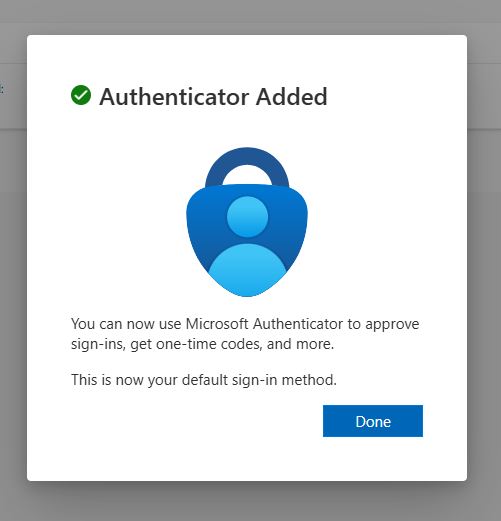
11. On your computer, you will now be directed back to MFA security settings page for your account. At this point, we strongly encourage you to setup a backup MFA authentication method for getting into your Tyndale account. As the Authenticator app is tied both to your exact phone and your Tyndale account, this backup method will be helpful if you ever break, lose, or upgrade your phone, or if the Authenticator app stops working for some reason. The most common backup method is the SMS/texting method. This will let Microsoft text your phone the codes necessary to complete the MFA process.
1. Click Passkey. Passkeys are the recommended additional security method of getting into your Tyndale account.
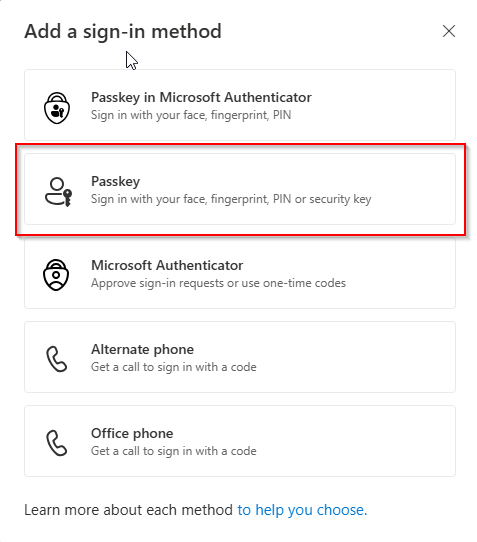
2. You can save a passkey in many locations. As I am creating a passkey using my computer browser (Edge), Microsoft has offered to save the passkey in the Microsoft Password Manager. However, I'd like to save the passkey on my phone, so I click "Save another way." These instructions will likely vary depending on your system, but you should be able to get a stage where you can save the passkey on a different device if you like.
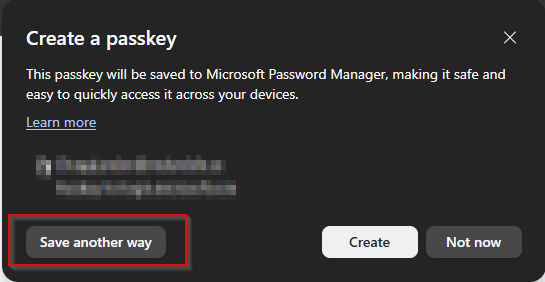
3. Select "Use a phone, tablet or security key"
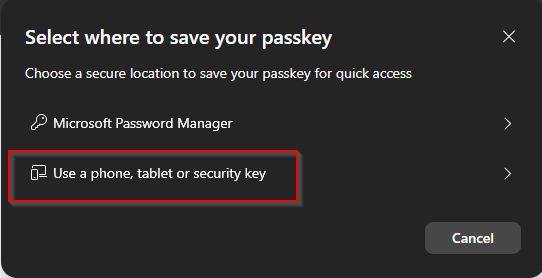
4. I would like to save the passkey on my Android phone, so I click "iPhone, iPad, or Android device"
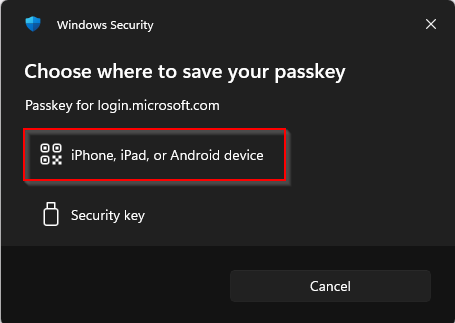
5. Scan the QR code with your phone or device.
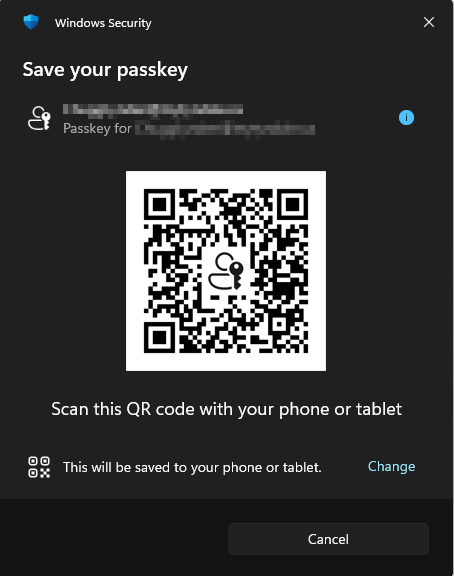
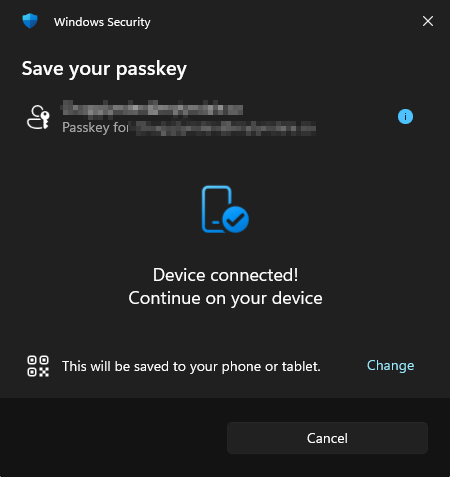
6. Once you scan the QR code and continue on your device, follow the instructions on your device. For Android devices, you'll be given the option of choosing on which account you want to save the passkey. You will also associate either your biometric (fingerprint or face), or PIN code or swipe code with your passkey. This information is used to unlock the passkey on your login.
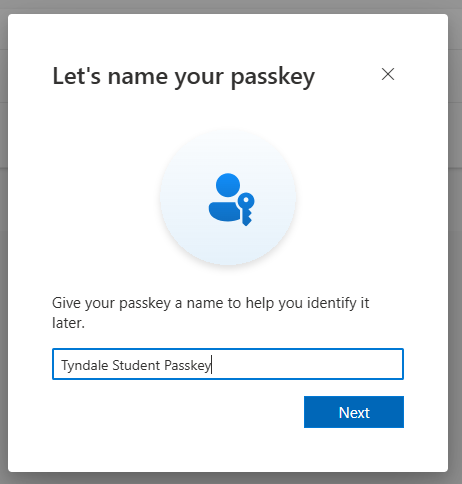
7. Once successful, you'll have an opportunity to name your passkey, so you will know which one it is.
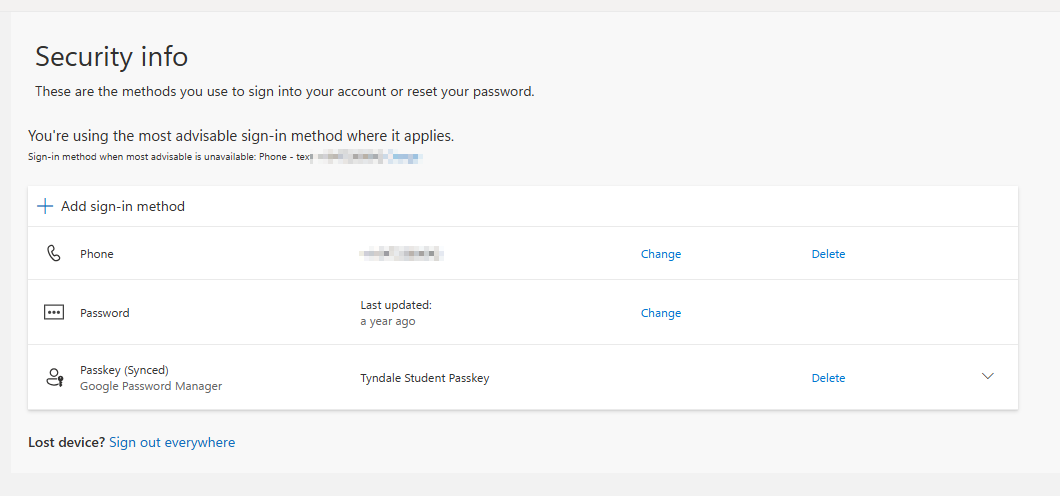
9. You can now see the named passkey listed in your Sign-in methods.