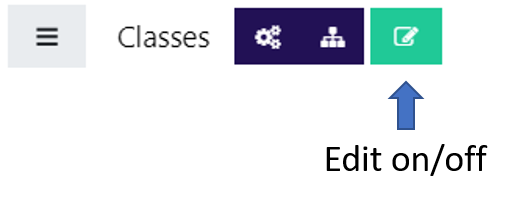
From your course page in classes.tyndale.ca, log in, and select Turn Editing On
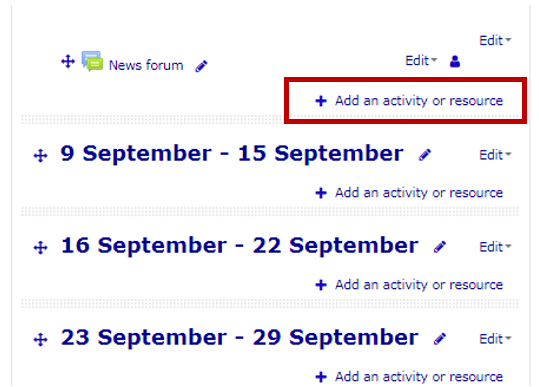
In the section you wish to add the forum, select Add an activity or resource
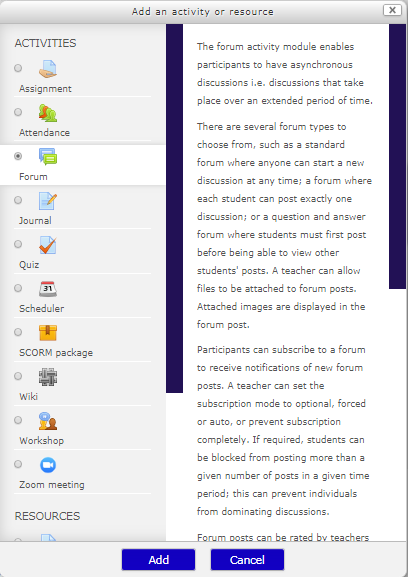
Select the radio button beside Forum followed by Add
Set up the Forum
General
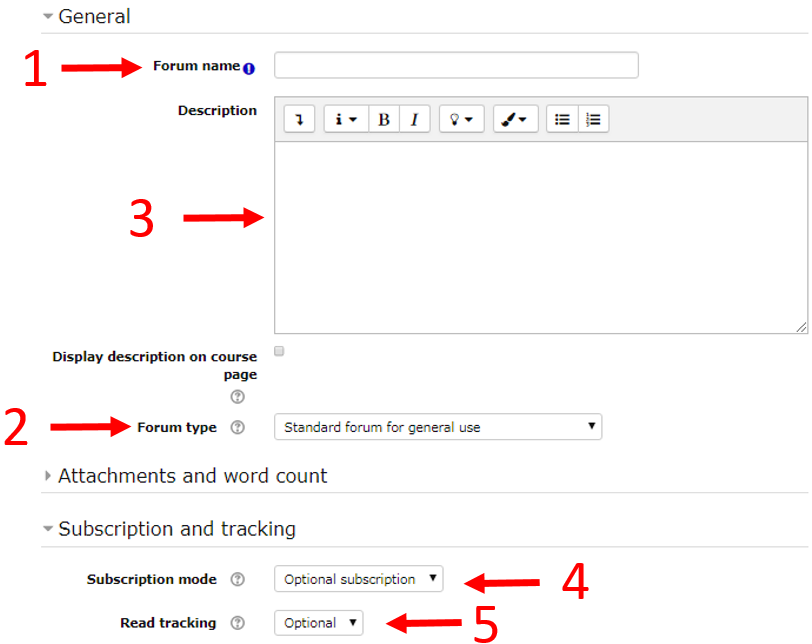
Forum name – The name that will display on the course page
Forum type
A single simple discussion – One topic to respond to
Each person posts one discussion –Limited to one new discussion topic per student
Q and A forum – Limits visibility to all replies until after student initially replies
Standard forum displayed in blog-like format – posts are listed chronologically
Standard forum for general use – students may create and reply to as many topics as they wish
Forum introduction – Information about the forum. This will be the first post of the Single simple discussion type.
Subscription mode – Do students receive e-mail notifications of new posts in forums after posting?
Read tracking for this forum – Flag new posts since last logon as unread
Post threshold for blocking
Useful to stop spammers in public forums. Not as useful for academic settings
Grade
Connects to Moodle Gradebook
Can track participation
Ratings
Students can rank posts
Useful for Gradebook
Common module settings
Group settings
Select Save and return to course to display the main course page, Save and display to show the forum, or Cancel to discard changes and return to the course page.